
Image Converter
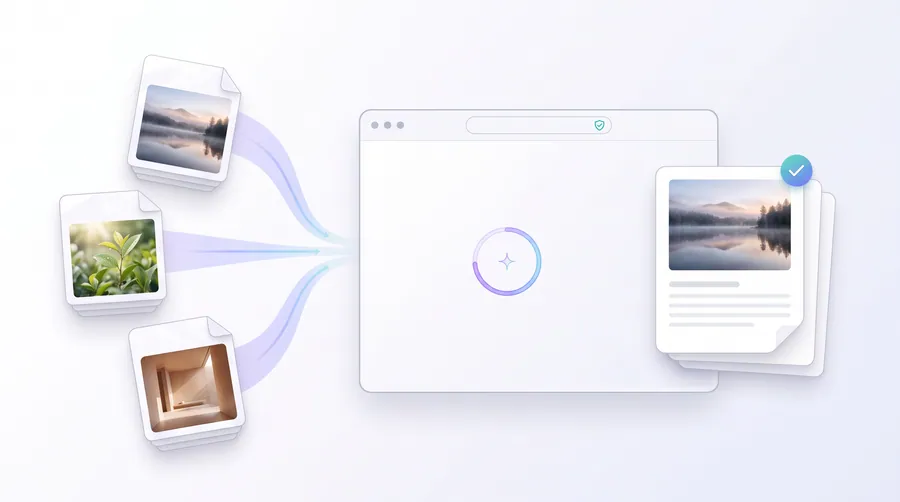
Convert images between JPEG, PNG and WebP entirely in your browser. Batch-convert many files at once and download them as a ZIP.
- No upload — processed on this device
- No account needed
- Free to use
Keep going
The natural next step
The details
How it works and what to expect
How it works
- Add the images you want to convert.
- Pick an output format (JPEG, PNG or WebP). For JPEG and WebP you can set the quality.
- Click Convert. Every file is re-encoded here on your device and delivered as files or a ZIP.
Which format should I choose?
- PNG — lossless, keeps crisp text and line art; files are larger.
- JPEG — smaller files, ideal for photos and scans; slightly lossy on flat areas.
- WebP — modern format with excellent compression for both photos and graphics, supported by all current browsers.
Limits
- Per-file limit of 100 MB.
- GIF and BMP are decoded, but only the first frame of an animated GIF is converted.
- WebP output requires a browser with WebP encoding (recent Chrome, Edge, Firefox or Safari).
Privacy
Conversion runs entirely in your browser. Your images are not uploaded to any server, and the converted files are produced on this device.
Practical guidance
Using this tool well
When it is the right answer, what tends to go wrong, and what to check before you rely on the result.
Why use it
Format acceptance is the first thing upload systems check, and the format also sets the ceiling on how small a file can get. Converting is the quickest way to make a file acceptable before you start tuning anything else.
Typical situations
- A form accepts only JPEG or PNG and your file is WebP.
- A photograph stored as PNG is far larger than it needs to be.
- You need a transparent graphic flattened onto a format a printer accepts.
Common problems
Converting a photo to PNG made it larger
PNG stores pixels exactly, so photographic detail expands rather than shrinks. Photographs belong in JPEG (or lossy WebP); line art and text belong in PNG.
Transparency became a solid colour
JPEG has no alpha channel. Save as PNG or WebP when the cut-out background matters.
Quality was lost in a second conversion
Each pass through a lossy format discards a little more. Convert once, from the original, at the quality you actually want.
Check before you submit
- Open the converted file and confirm the extension matches what is inside it.
- If transparency mattered, check the background is still transparent.
- Compare file size against the limit you are working to — conversion alone may already solve it.
Questions
Frequently asked questions
Which formats are supported?
It converts between JPEG, PNG and WebP (and reads GIF/BMP). Use the image quality setting to control the output size.
Read next
Guides and reference
The reading that goes with this tool — a walkthrough of the job, and the terms it uses.
- How image dimensions affect file sizePixels, quality and format each push file size in a different direction. Understanding which one dominates saves a lot of guesswork.
- JPG vs PNG vs WebP for uploads, forms and printingThree formats, three different jobs. Choosing the wrong one is the most common reason an image is either far too large or wrongly rejected.
- How to keep a file inside a required KB or MB rangeWhether the limit is 50 KB for a photo or 5 MB for a scanned PDF, the same discipline applies: know what controls size, change one thing at a time, verify, and leave headroom.
- How to choose the right compression levelCompression settings are a dial between file size and visible detail. Here is how to read the dial, and where to stop.
- Common reasons online forms reject uploaded imagesMost rejected uploads fail on one of five things: format, byte size, pixel size, aspect ratio or file naming. Working down the list in that order resolves almost every case.
Terms used on this page
Defined in the site glossary, with the practical context that matters here.