
Compress Images
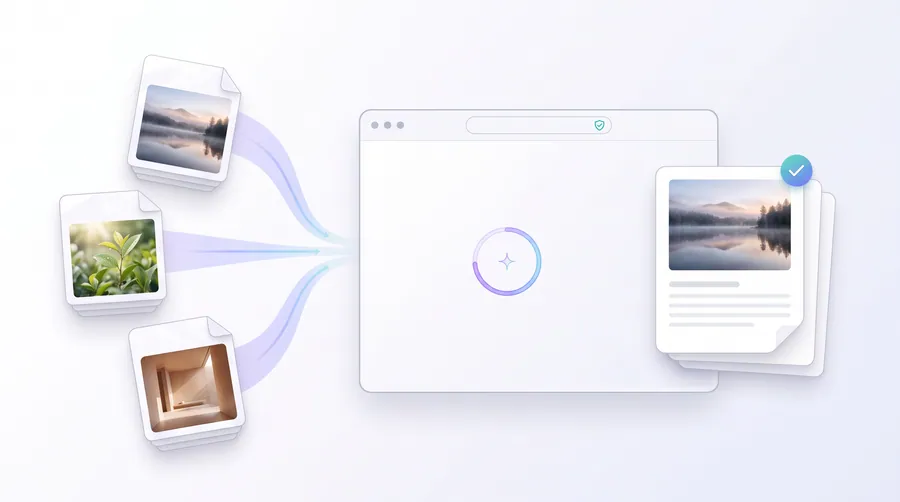
Reduce the file size of JPEG, PNG and WebP images in your browser. Adjust the quality and watch the estimated savings.
- No upload — processed on this device
- No account needed
- Free to use
Keep going
The natural next step
The details
How it works and what to expect
How it works
- Add the images you want to compress.
- Set the quality — a lower value shrinks the file, a higher value keeps more detail.
- Click Compress. You’ll see the before/after size, then download the results.
What gets compressed
- JPEG and WebP are re-encoded as lossy files — quality directly controls the trade-off.
- PNG is re-encoded losslessly; gains are usually small.
- GIF and BMP are saved as PNG because they cannot be re-encoded in the browser.
Limits
- Per-file limit of 100 MB.
- Quality range is 5–100.
- Some files may end up larger after re-encoding; the tool will tell you and suggest a lower quality.
Privacy
Compression runs entirely in your browser. Your images are not uploaded to any server, and the compressed files are produced on this device.
Practical guidance
Using this tool well
When it is the right answer, what tends to go wrong, and what to check before you rely on the result.
Why use it
Compression reduces bytes by encoding more efficiently rather than by cutting detail you can see. It is usually the fastest way to move an over-limit file back under it without touching the composition.
Typical situations
- A file exceeds an upload limit but the dimensions are already correct.
- You want a page of images to load faster without visibly degrading them.
- You are preparing a batch where each file must fit a modest byte budget.
Common problems
Faces look blocky at low quality
Raise the quality setting and try again. When quality alone cannot reach the target, reduce the dimensions instead of pushing the slider further.
Compression did not change the dimensions
That is expected — encoding and dimensions are separate controls. Use Resize Image if the requirement is in pixels.
Repeated saving kept shrinking quality
Each save of a lossy file discards more. Always compress from the original file, not from an already-compressed copy.
Check before you submit
- Check the resulting file size against your target.
- Inspect faces, text and hard edges at full size — these fail first.
- Keep the original alongside the compressed output.
Questions
Frequently asked questions
How much can I compress an image?
That depends on the image. You choose the quality (and WebP or JPEG output) and see the resulting size immediately, so you can target a specific result.
Does compression reduce dimensions?
Compression lowers the file size through quality/encoding only; use Resize Image to change dimensions.
Read next
Guides and reference
The reading that goes with this tool — a walkthrough of the job, and the terms it uses.
- How to reduce an image to a specific KB size without making it unusableUpload forms often accept a narrow byte range, not a pixel size. Here is what actually controls file size, and a reliable order of changes to try.
- How image dimensions affect file sizePixels, quality and format each push file size in a different direction. Understanding which one dominates saves a lot of guesswork.
- JPG vs PNG vs WebP for uploads, forms and printingThree formats, three different jobs. Choosing the wrong one is the most common reason an image is either far too large or wrongly rejected.
- Why a signature becomes blurry after compressionThin strokes are exactly what lossy encoders attack. What is happening to your signature image, and the settings that keep it readable.
- How to keep a file inside a required KB or MB rangeWhether the limit is 50 KB for a photo or 5 MB for a scanned PDF, the same discipline applies: know what controls size, change one thing at a time, verify, and leave headroom.
- How to choose the right compression levelCompression settings are a dial between file size and visible detail. Here is how to read the dial, and where to stop.
- How to reduce a PDF size while preserving readabilityMost large PDFs are large because of embedded images, not text. Here is where the bytes actually are, and how to remove them without blurring the content people need to read.
- How to resize a signature for an application formSignature fields are small, byte-limited and unforgiving of blur. What the usual sizes mean, and how to prepare one signature that works everywhere.
- How to prepare images for printingPrint has requirements screen work never surfaces: physical size, density, colour, bleed and paper. A checklist that runs in the right order.
Terms used on this page
Defined in the site glossary, with the practical context that matters here.
Guided
This tool inside a workflow
A ready-made sequence that solves a whole job — this tool is one step in it.
Ecommerce product image & catalog workflow
Products sell on consistent photos. Square up images, hit marketplace image sizes, watermark for theft protection, rename in bulk and turn a catalog into a printable PDF — without leaving the browser.
Freelancer business document workflow
Proposals, contracts, signatures, invoices and client packs — the paperwork side of freelancing, produced locally with tools built from your own data.