
Notes to PDF
Turn your class notes and hand-written scans into one clean PDF — entirely in your browser. One scan per page, with optional grayscale or contrast clean-up.
- No upload — processed on this device
- No account needed
- Free to use
PDF settings
Keep going
The natural next step
The details
How it works and what to expect
How it works
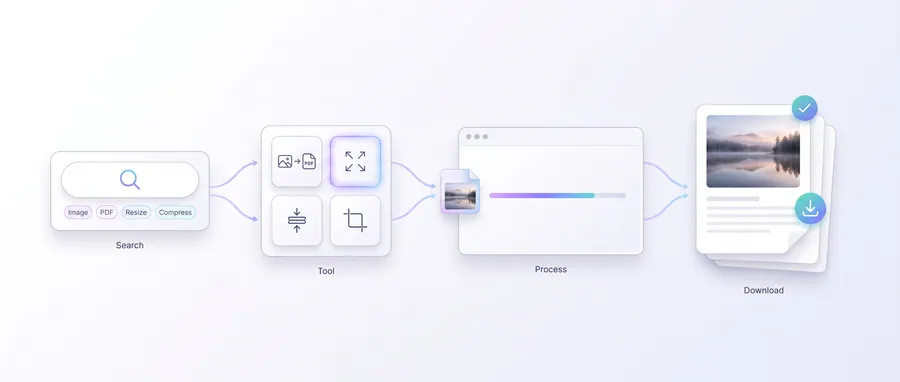
- Drop your notes scans (or photos) into the box, or browse to choose them.
- Pick a page size, orientation, margin, fit and an optional clean-up preset.
- Click Build notes PDF. Each scan becomes one page, in the order shown.
- Download the finished PDF — your scans never leave this device.
Clean-up presets
- Grayscale — removes colour for a classic black-and-white scan look.
- Stronger contrast — darkens ink and lifts the page so hand-writing reads better.
- Clean scan — a balanced preset for photos of paper with shadows or glare.
- No preset means the scans are embedded exactly as they are.
Notes on pages and sizes
- Page sizes: A4, Letter, A3 and A5. Custom sizes are not supported here.
- Fit keeps the whole scan visible; Cover fills the page and crops overflow; Stretch fills the page but can distort.
- Views and margin are set in millimetres (0–60 mm).
- Very large scans are downscaled to a maximum of 8192 px so processing stays safe in the browser.
- The resulting PDF embeds the scans as pictures — the text of your notes is not searchable, and this tool does not perform OCR.
Privacy
Notes to PDF runs entirely in your browser. Your scans are never uploaded to a server, and the PDF is generated on this device. As with any website this is not a guarantee of absolute privacy, but for this tool there is no upload step at all.
Practical guidance
Using this tool well
When it is the right answer, what tends to go wrong, and what to check before you rely on the result.
Why use it
Handwritten notes are useful precisely because they are handwritten — and unusable in an email as a pile of photos. One scan per page in a single PDF keeps the handwriting intact and the file tidy.
Typical situations
- Class notes or meeting pages must be submitted as one file.
- Whiteboard or notebook pages need sharing with a group.
- You want paper notes searchable alongside digital documents.
Common problems
Pages are out of order
Order follows the file list. Check it before combining — reordering a PDF afterwards is extra work.
Photographed pages look grey and dim
Use the grayscale or clean-up presets to lift the paper and deepen the ink before combining.
The PDF is too large to submit
Photographs carry a lot of data. Reduce image resolution or compress the photos first if the portal sets a limit.
Check before you submit
- Flip through every page in the output.
- Confirm handwriting is legible at normal zoom.
- Check the file size against the submission limit.
Read next
Guides and reference
The reading that goes with this tool — a walkthrough of the job, and the terms it uses.
Guided
This tool inside a workflow
A ready-made sequence that solves a whole job — this tool is one step in it.
Job & exam application documents
Applications usually demand a photo at an exact size, a signature, and every page combined into one tidy PDF. This workflow covers the whole loop in your browser — no uploads, no account.
Student study & assignment toolkit
Turn notes into a PDF, shrink scans for an upload limit, and keep hand-ins tidy: a small set of student tools that do real work on your own device.