
Job & exam application documents
Applications usually demand a photo at an exact size, a signature, and every page combined into one tidy PDF. This workflow covers the whole loop in your browser — no uploads, no account.
- Government Job / Exam Application
- Cyber Café / Online Service Center
- Student / Education
invoice.pdf
Your fields, filled in locally
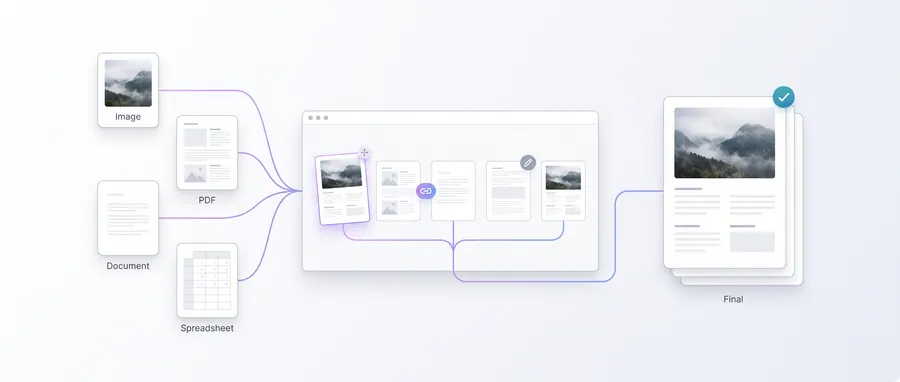
The journey
Follow it step by step
3 guided steps, every one running in your browser. Start with the first and work your way down.
Step 1 of 3Start here
Prepare the photo
Resize the photo to the exact KB stated in the notification with Exact KB Photo, or to exact pixels with Exact Size Photo. Use White Background if the backdrop needs cleaning and Document Filter if you are scanning a printed photo.
Step 2 of 3
Prepare the signature
Most applications require a signature image at a set profile (commonly 3.5 × 1.5 cm). Resize Signature prepares the image; Sign a PDF can place it onto a form page.
Step 3 of 3
Combine every page
Add certificates, forms and scanned pages — photos and PDFs — in the required order with Application Document Pack. When you start from notes or text, convert them to PDF first with Notes to PDF, then merge before packing.
Frequently asked questions
Do the tools know the official requirements?
No. Official photo, signature and document requirements differ by board, state and notification. The tools let you hit a stated size or KB target, but you must read the notification for the exact values.
How is my typed application kept private?
Everything runs in the browser. Your documents, photo and signature never leave your device.
Can I combine scanned photos and PDFs?
Yes — Application Document Pack accepts both images and PDFs and lets you order the pages before exporting one PDF.