
Document Filter
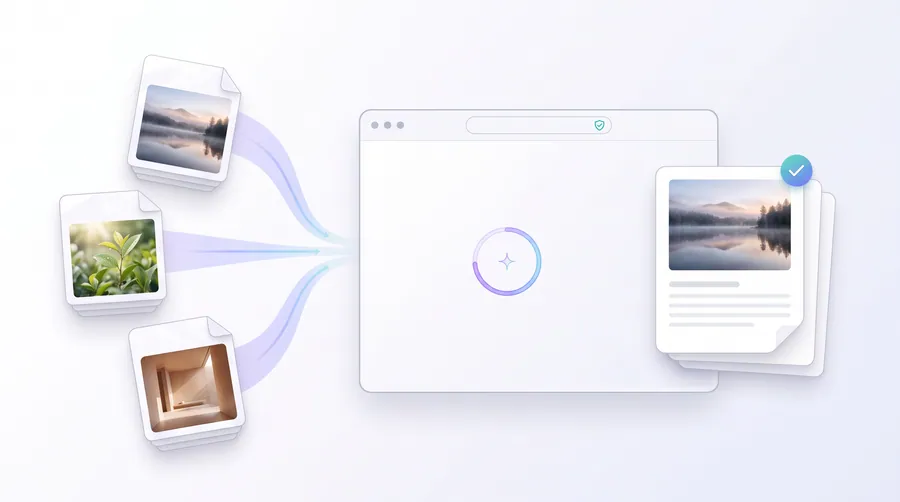
Turn photos of documents into clean, printer-ready scans — grayscale, stronger contrast or one-tap clean scan — all in your browser.
- No upload — processed on this device
- No account needed
- Free to use
image.png
Live preview, nothing uploaded
Keep going
The natural next step
The details
How it works and what to expect
How it works
- Add the photos or scans you want to prepare.
- Choose a filter. Grayscale works every time; Contrast and Clean scan have a strength control (0–1).
- Pick an output format (PNG, JPEG or WebP) and click Apply. The result opens exactly where it fits best.
Which filter?
- Grayscale — luminance conversion ideal before sending to a printer or photocopier.
- Stronger contrast — deepens ink and brightens paper for text-heavy pages.
- Clean scan — stretches the tonal range so washed-out grey scans become white paper with crisp dark text.
Limits
- Per-file limit of 100 MB.
- Filters are non-destructive: the original files you uploaded are never modified.
- WebP output requires a browser with WebP encoding (recent Chrome, Edge, Firefox or Safari).
Privacy
Everything runs in your browser on this device. Your documents are not uploaded to any server.
Practical guidance
Using this tool well
When it is the right answer, what tends to go wrong, and what to check before you rely on the result.
Why use it
A photo of a page is rarely printable as taken: the paper reads grey, the text reads soft, and a printer reproduces both faithfully. A filter rebuilds the tonal range so the printed result looks like a scan rather than a photograph.
Typical situations
- You photographed a document because you had no scanner and now need it readable on paper.
- A scan came out washed out and the text is hard to read when printed.
- You want a set of pages consistent in tone before combining or printing them.
Common problems
Clean scan pushed the paper past white
Strength is a control, not a fixed preset. If light markings or pencil notes disappear, lower the strength — the tool never modifies your originals, so you can re-run it at a gentler setting.
Colour information is lost in grayscale
Grayscale is a one-way conversion for that output file. Keep the original if the document contains colour you might need later.
WebP output will not open in older software
Choose PNG or JPEG when the destination is an upload portal or desktop program that may not read WebP.
Check before you submit
- Zoom in on the smallest text and confirm it is crisp, not smudged by the strength setting.
- Compare against the original once — nothing important should have been filtered away.
- Check the output format matches where the file is going.
Read next
Guides and reference
The reading that goes with this tool — a walkthrough of the job, and the terms it uses.
- How to prepare front-and-back ID documents for digital submissionID uploads usually mean two images (or two pages) with readable text, no glare, no skew and an exact byte budget. Here is the order that gets you there.
- How to make a clean printable document from imagesPhotos of pages, whiteboards and certificates become a usable document through a few deliberate steps: clean, order, page, verify.
Guided
This tool inside a workflow
A ready-made sequence that solves a whole job — this tool is one step in it.
Cyber café & service centre workflows
The tools a cyber café or online service centre runs all day: print customers' passport and ID photos, prepare documents for printing, combine application pages, and keep the queue moving without uploading anyone's files.
Job & exam application documents
Applications usually demand a photo at an exact size, a signature, and every page combined into one tidy PDF. This workflow covers the whole loop in your browser — no uploads, no account.