
DPI Checker
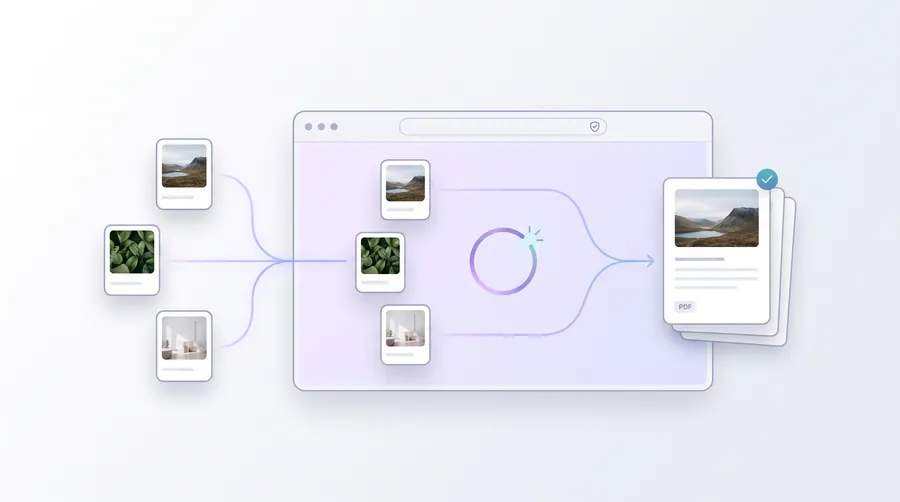
See exactly how big an image prints at your chosen DPI and whether resolution is high enough for a full paper page — without downloading anything.
- No upload — processed on this device
- No account needed
- Free to use
Keep going
The natural next step
The details
How it works and what to expect
How it works
- Add the images you plan to print.
- Choose the paper size (A4, A5, A3, Letter or Legal) and a target DPI (150–600).
- Read the report: print size at that DPI, the effective DPI on your paper, and whether the whole page is safe.
What the numbers mean
- Print size — how large the photo would be at the target DPI (300 DPI is the standard for good prints).
- DPI on page — the resolution actually reached when the image width fills the full page width.
- Whole page — if the shorter side also has enough pixels, the image can fill the whole sheet without softening.
Quick guide
- 150 DPI — acceptable for everyday photocopy-quality documents.
- 300 DPI — crisp office documents and clear text.
- 600 DPI — archival scans and small type.
Privacy
Image information is read from file headers only, entirely on this device. Nothing is uploaded.
Practical guidance
Using this tool well
When it is the right answer, what tends to go wrong, and what to check before you rely on the result.
Why use it
Whether an image will print acceptably is a calculation — pixels against intended size — not an impression. The tool does that arithmetic so you can decide before committing ink and paper.
Typical situations
- You must check whether a photo has enough pixels for a full page print.
- You need the printed dimensions of an image at a chosen DPI.
- Two files look identical on screen and you need to know which prints better.
Common problems
The DPI value itself was changed, not the image
DPI only describes how existing pixels map to physical size. Changing the label never adds detail — the pixel count is what carries quality.
The result says the image is too small
Reduce the intended print size, or start from a higher-resolution original. Enlarging pixels cannot recover detail that was never captured.
Screen and print numbers disagree
Screens ignore DPI entirely; only the printer applies it. Judge screen quality by pixels and print quality by the reported DPI at your size.
Check before you submit
- Confirm the intended print size matches what the report assumed.
- Compare the reported pixel density against roughly 300 DPI for close viewing, 150 DPI for larger output.
- Keep the original file — the tool reports, it does not modify.
Read next
Guides and reference
The reading that goes with this tool — a walkthrough of the job, and the terms it uses.
- How to check an image's dimensions before submittingTwo minutes of verification prevents most rejections. What to check, which tools read it, and what the numbers should tell you.
- PDF page size and orientation, explainedA4, Letter, portrait, landscape — the page is a property of the document, not of your screen. What the values mean and how to change them safely.
- Pixels, DPI and physical print size, explainedDPI is not a quality setting — it is the conversion factor between pixels and millimetres. Understanding that one relationship resolves most confusion about print sharpness.
- How to prepare images for printingPrint has requirements screen work never surfaces: physical size, density, colour, bleed and paper. A checklist that runs in the right order.
Terms used on this page
Defined in the site glossary, with the practical context that matters here.
Guided
This tool inside a workflow
A ready-made sequence that solves a whole job — this tool is one step in it.
Cyber café & service centre workflows
The tools a cyber café or online service centre runs all day: print customers' passport and ID photos, prepare documents for printing, combine application pages, and keep the queue moving without uploading anyone's files.
Passport, visa & ID photo workflow
Make compliant-style photo sheets, exact-size files for online forms, and clean prints — passport, visa and ID photo requirements all start the same way: a decent portrait and the correct dimensions.
Print & booklet preparation workflow
From a plain PDF or photo to a printed booklet, A4 sheets, photo prints and multi-page setups — with page-layout tools that re-impose without rasterising your source pages.