
Exact Size Photo
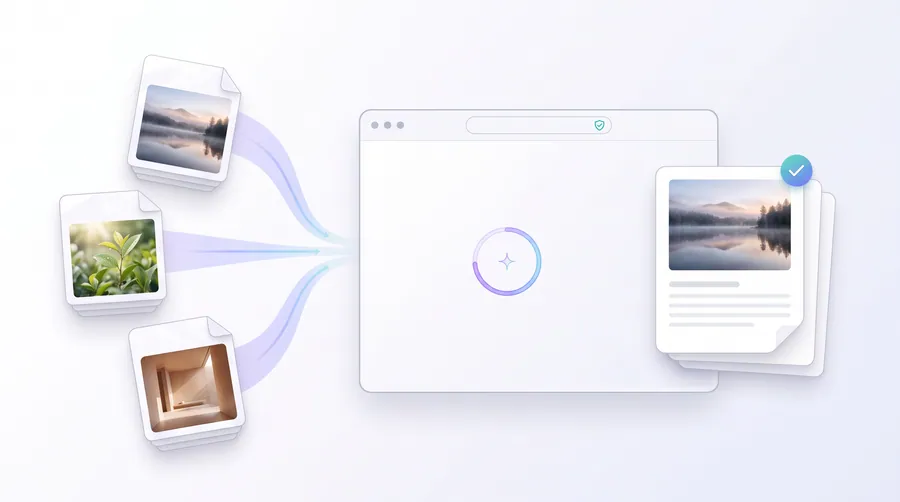
Resize a photo to an exact pixel dimension (for example 600 × 800 px) without stretching it — the excess is cropped, not squashed. Entirely in your browser.
- No upload — processed on this device
- No account needed
- Free to use
Keep going
The natural next step
The details
How it works and what to expect
How it works
- Upload a photo.
- Enter the exact width and height in pixels.
- Drag the crop frame to choose which part of the image fills the frame.
- Download the image at exactly those dimensions. Nothing is distorted.
Why it never distorts
The crop is locked to the output's aspect ratio. The photo is scaled down (only if needed) and the part you choose fills the exact width and height — so a 10000 × 4000 panorama and a square selfie both fit cleanly into any requested rectangle.
Privacy
All processing happens on this device. No uploads.
Practical guidance
Using this tool well
When it is the right answer, what tends to go wrong, and what to check before you rely on the result.
Why use it
When a requirement is stated in exact pixels, filling the frame matters more than preserving every pixel of the original. Cropping excess and scaling to the target gives the right shape without stretching anyone.
Typical situations
- A portal wants exactly 600 × 800 px and your photo is 4:3.
- A profile or listing slot has fixed pixel dimensions.
- You need the subject centred in a frame of a specific shape.
Common problems
The crop removed the top of the head
Review the selection before saving. The tool crops rather than squashes, so what you exclude stays excluded — take a moment to frame it properly.
The source is smaller than the target
Scaling up to the required pixels adds size but not detail. Use the largest source available when the target is big.
The file is the right size but too heavy
Dimensions and bytes are separate. Compress afterwards if a KB limit also applies.
Check before you submit
- Confirm the output equals the required pixel dimensions exactly.
- Check the subject is fully inside the frame.
- Check the resulting file size if a byte limit applies.
Read next
Guides and reference
The reading that goes with this tool — a walkthrough of the job, and the terms it uses.
- How to avoid stretched or distorted photosAspect ratio is the reason a photo ends up squashed. What the ratio means, why forms break it, and the two legitimate ways to hit an exact size.
- Common reasons online forms reject uploaded imagesMost rejected uploads fail on one of five things: format, byte size, pixel size, aspect ratio or file naming. Working down the list in that order resolves almost every case.
- How to prepare a passport photo for an online applicationAn online passport photo has to satisfy a framing requirement, a background requirement, a pixel or print size, and often a byte limit — at the same time.
Terms used on this page
Defined in the site glossary, with the practical context that matters here.
Guided
This tool inside a workflow
A ready-made sequence that solves a whole job — this tool is one step in it.
Cyber café & service centre workflows
The tools a cyber café or online service centre runs all day: print customers' passport and ID photos, prepare documents for printing, combine application pages, and keep the queue moving without uploading anyone's files.
Passport, visa & ID photo workflow
Make compliant-style photo sheets, exact-size files for online forms, and clean prints — passport, visa and ID photo requirements all start the same way: a decent portrait and the correct dimensions.
Job & exam application documents
Applications usually demand a photo at an exact size, a signature, and every page combined into one tidy PDF. This workflow covers the whole loop in your browser — no uploads, no account.