
Order document generator
Create a confirmed order document listing the items, quantities and the order total — ready to save or send, built entirely in your browser.
- No upload — processed on this device
- No account needed
- Free to use
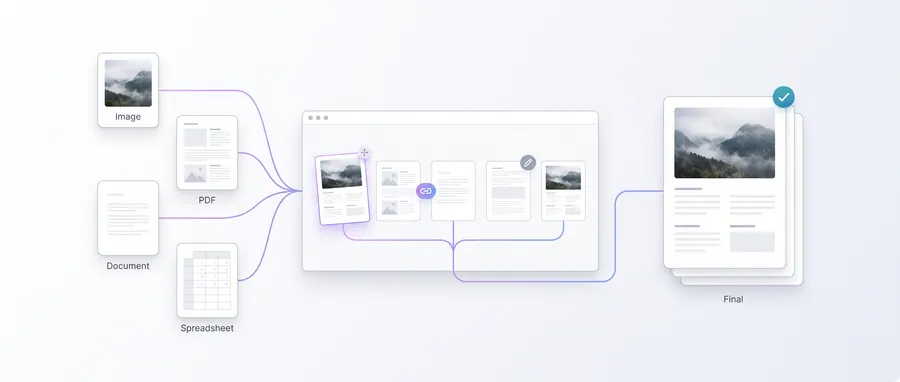
Order details
A confirmed order document listing the items, quantities and the order total.
Leaves a file like order-[number].pdf
Line items
Produces a order PDF completely in your browser — nothing is uploaded.
Keep going
The natural next step
The details
How it works and what to expect
How it works
- Enter your business, the customer and an order reference.
- List the ordered items with their quantities and unit prices.
- Set the tax rate and download the order PDF.
Totals
The order subtotal, tax and grand total are calculated and printed under the item table, mirroring an invoice but framed as a confirmed order.
Privacy
Order documents are generated locally. Your order information is never uploaded.
Practical guidance
Using this tool well
When it is the right answer, what tends to go wrong, and what to check before you rely on the result.
Why use it
When an order is confirmed, both sides benefit from a single document stating items, quantities and total. It records what was agreed without requiring an order-management system.
Typical situations
- A customer ordered by message and needs written confirmation.
- You want a paper record of what was dispatched.
- An order needs to be passed to someone else to fulfil.
Common problems
The total disagrees with what was quoted
Totals are calculated from your line entries. Reconcile quantities and any discount you entered before sending.
It is not a legal invoice
An order document records the order; an invoice requests payment. Produce both when your customer's process expects them.
Status wording is ambiguous
State the status clearly in the notes so nobody assumes payment has occurred when it has not.
Check before you submit
- Confirm items, quantities and the calculated total.
- State the order status unambiguously.
- Keep a copy with your fulfilment records.
Guided
This tool inside a workflow
A ready-made sequence that solves a whole job — this tool is one step in it.