
Receipt generator
Issue a clean receipt for payment received — itemised, dated and ready to email or print, built entirely in your browser.
- No upload — processed on this device
- No account needed
- Free to use
Receipt details
Proof of payment: what was bought, for how much, and the amount received.
Leaves a file like receipt-[number].pdf
Line items
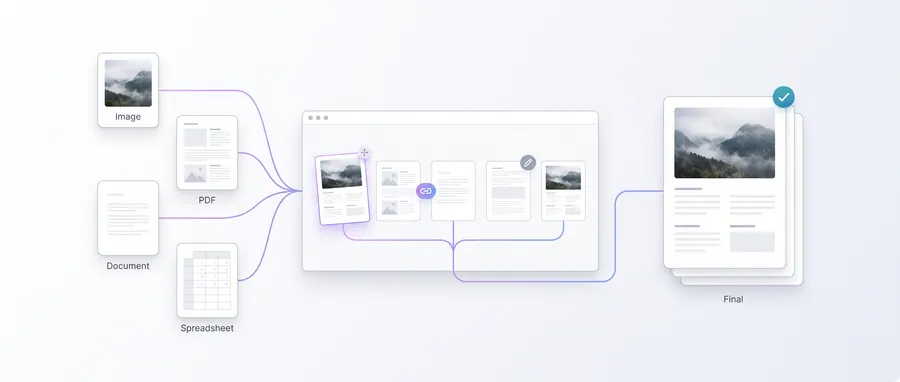
Produces a receipt PDF completely in your browser — nothing is uploaded.
Keep going
The natural next step
The details
How it works and what to expect
How it works
- Enter your business name, the customer and a receipt number.
- List the items, quantities and prices that were paid for.
- Download the receipt PDF — the amount received is printed in the totals.
Totals
The subtotal, any tax and the total received are calculated automatically and shown clearly under the table.
Privacy
Receipts are generated locally in your browser. No purchase data leaves this device.
Practical guidance
Using this tool well
When it is the right answer, what tends to go wrong, and what to check before you rely on the result.
Why use it
A receipt confirms payment received — dated, itemised and easy to file. Producing one immediately after payment avoids the “I will send it later” that clients remember.
Typical situations
- A customer paid and needs written confirmation.
- You keep payment records for your own accounts.
- An expense claim needs supporting evidence.
Common problems
Amount received differs from the amount invoiced
Enter what was actually received. If it was a partial payment, note that in the document rather than restating the full figure.
Payment method or reference is missing
Add the method and any transaction reference in the available fields — a receipt without a reference is harder to reconcile later.
It does not look like my other paperwork
The layout is fixed by the tool. Consistency across your own documents comes from always using this one.
Check before you submit
- Confirm the amount and date against the actual payment.
- Check your business details are correct.
- File the PDF with your records immediately.
Guided
This tool inside a workflow
A ready-made sequence that solves a whole job — this tool is one step in it.
Freelancer business document workflow
Proposals, contracts, signatures, invoices and client packs — the paperwork side of freelancing, produced locally with tools built from your own data.
Small business paperwork workflow
Invoices, quotations, receipts, packing slips, price lists and catalog pages — the recurring documents of a small business, built from the same product and customer data in your browser.