
PDF to Images
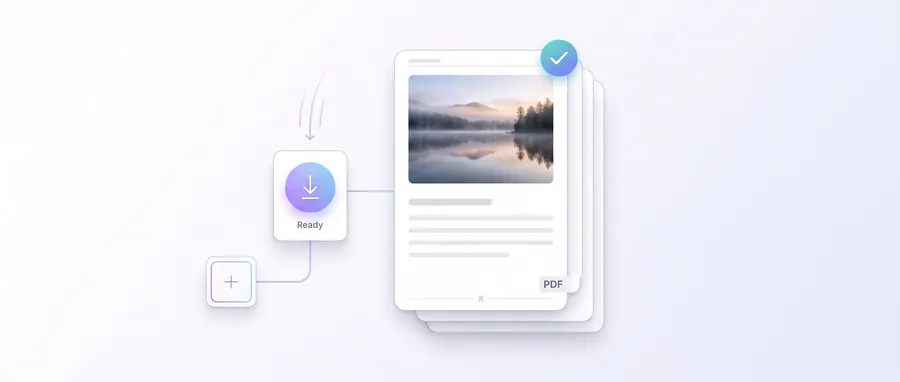
Turn a PDF into PNG or JPEG images — entirely in your browser. Choose which pages to convert and the image quality.
- No upload — processed on this device
- No account needed
- Free to use
Keep going
The natural next step
The details
How it works and what to expect
How it works
- Add your PDF.
- Pick a format (PNG or JPEG) and a quality preset (1× screen, 2× crisp, 3× print).
- Choose the pages to convert — every page is selected by default.
- Click Convert. Each page becomes one image; multiple pages are delivered as a ZIP.
PNG or JPEG?
- PNG — lossless, crisp text and line art, larger files.
- JPEG — smaller files, better for scans and photos, minor compression visible on flat text.
- The image resolution depends on the quality preset. Bigger paper sizes need higher presets to stay sharp when printed.
Limits
- Per-file limit of 100 MB.
- Password-protected PDFs are not supported and will show an error.
- Generation is capped at 8192 px per side, so very large pages are rendered at a safe slightly lower scale.
- Text in the result is an image and is not searchable.
Privacy
PDF to Images runs entirely in your browser. Your file is not uploaded to any server, and the images are rendered on this device. Nothing in this tool transfers your files over the network.
Practical guidance
Using this tool well
When it is the right answer, what tends to go wrong, and what to check before you rely on the result.
Why use it
Sometimes you need a page as a picture: to post it, to annotate it in a drawing app, or to read it on a device that will not open PDFs. This produces those images directly instead of screenshotting.
Typical situations
- A page needs to be pasted into a slide or message.
- You want to share one page without sharing the whole document.
- A tool accepts images but not PDFs.
Common problems
Conversion refuses a password-protected PDF
Every page must be rendered to an image, and an encrypted document cannot be rendered here — the file is rejected when it is added. Produce an unlocked copy first.
Text is no longer selectable
A rendered page is pixels. If you need the text as well, use PDF to Text alongside it.
The images are too small or too large
Resolution is a setting you choose before converting. Pick for the use — screen sharing needs far less than print.
JPEG introduced fringing around text
Choose PNG for text-heavy pages; JPEG suits photographs and continuous tone.
Check before you submit
- Open a couple of the produced images and confirm they are sharp at the size you will use them.
- Confirm every page you selected was produced.
- Check the format suits the destination.
Questions
Frequently asked questions
Does PDF to Images rasterise my pages?
Yes — the tool renders each PDF page as a PNG (and optionally text) image so you can view, share or reuse the pages as images.
What resolution are the images?
The renderer produces print-safe images at a resolution suitable for screens and most print uses; check the tool page for the exact option.
Read next
Guides and reference
The reading that goes with this tool — a walkthrough of the job, and the terms it uses.
- How to reduce a PDF size while preserving readabilityMost large PDFs are large because of embedded images, not text. Here is where the bytes actually are, and how to remove them without blurring the content people need to read.
- Split, extract and reorder PDF pages without losing qualityThree closely related jobs that people often confuse — separating, selecting and re-sequencing — and why none of them should involve screenshotting pages.
Terms used on this page
Defined in the site glossary, with the practical context that matters here.
Guided
This tool inside a workflow
A ready-made sequence that solves a whole job — this tool is one step in it.